Setting Up Different Types of Documents
Path: Setup >
Documents
This section guides you through configuring various document types within the system.
Document General Settings
When setting up a document, you'll specify the following general details:
-
Document Name: Give your document a short, descriptive name (e.g., "Loan Agreement").
-
Type: Select the document type from the dropdown list. This classification determines its purpose and how it functions within the system.
- Budget Form: Used to print a questionnaire form for clients to complete their income and expenses.
- Client Detail: For setting up a general client detail document.
- Credit Enquiry Consent Form: For setting up a form to obtain consent for credit inquiries.
- Credit Protection Insurance Agreement: For configuring CPI agreements for providers like ASPIS, Kepler, 1Surance, and others.
- Letter of Demand: Used to set up an "In Default Notice."
- Loan Invoice Instalments: This is for setting up the primary loan agreement document.
- Loan Quotation: For documents generated during the loan application phase. You'll need to enable quotation generation in the loan product setup.
- Standard Conditions: For
setting up terms and conditions that print along with the loan agreement.
- If you select the "Print Standard Conditions" checkbox on the client's profile, these conditions will automatically generate with a new active loan agreement.
- NCR Form 39...: For
setting up South African NCR (National Credit Regulator) documents.
- These reports require specific setup and
can be accessed under
Reporting > Management >
      Regulator
.
- These reports require specific setup and
can be accessed under
- EnDO Receipt / EnDO Mandate: If MaxCollect is enabled and configured, you can set up the EnDO Mandate Document using "EnDO Receipt" as the Document Type. It will automatically generate if a loan's payback type is EnDO Receipt when you create a new active loan.
-
Language: The available languages are determined by the country your entity operates in. For RSA Form 39 documents, always select English.
-
CSP: Select the CSP (Customer Service Point) when setting up an EnDO Mandate.
-
Loan Product: Select the relevant loan product. Each loan product generally has its own loan agreement, allowing for customized documents per product. You do not need to select a loan product when setting up NCR Form 39 documents.
-
Enabled: If this checkbox is selected, the document will be available for use throughout the system.
-
Use Master Document: Select this checkbox if your document setup should use a pre-defined master document from MAXMONEY.
-
Master Document: If "Use Master Document" is selected, choose the specific master document MAXMONEY should use. The list of available master documents is filtered by the selected Document Type.
Document Editor
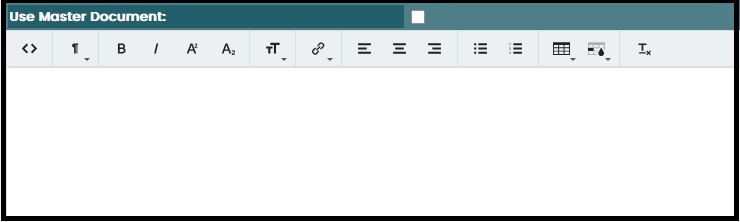
The document editor operates much like a standard word processor.
- Icons: Hover over the various icons in the editor toolbar to see their tooltips (e.g., Cut, Copy, Paste, Bold, Italic, Numbered List, Bulleted List, Left Justify, Centre, Font Size, and more).
- Typing/Editing: Click within the white space of the editor to place your cursor and begin typing or editing your document.
- HTML documents: If you have HTML source code, click the Source icon: "<>", paste your code into the editor, and then click the Source icon again to render and display your document.
Document Groups and Merge Fields
-
Choose Document Group: This dropdown displays a list of available Token (merge field) groups. These groups contain predefined data fields that can be inserted into your document to automatically pull in client, loan, or entity-specific information when the document is generated.
Standard groups include:
| Group | Description | Documentation |
| Branch | MaxMoney -> Setups -> Branch | Branch |
| Client | MaxMoney -> Client Administration -> Search for a Client -> Edit Client | Client |
| Client Preferred Payback Bank Account | MaxMoney -> Client Administration -> Search for a Client -> Edit Client -> Banking Tab -> Add/Edit Bank Account | Client Preferred Payback Bank Account |
| Credit Protection Insurance Agreement | Redundant. Replaced by GLP. | Credit Protection Insurance Agreement |
| Employer | Employer -> Search for an Employer -> Edit Employer | Employer |
| Employer Pay Point | MaxMoney -> Employers -> Search for an Employer -> Pay Points -> Edit Pay Point | Employer Pay Point |
| General | It will display the name of the person to whom the letter is addressed if it was entered | General |
| Global Loan Protection | Credit Insurance (GLP). Client Administration -> Search for a Client -> New Loan | Global Loan Protection |
| In Default | Client Administration -> Search for a Client -> New Loan | In Default |
| Legal Entity | Setup > General | Legal Entity |
| Loan Agreement | Client Administration -> Search for a Client -> New Loan | Loan Agreement |
| MAXUP | Value Add Products. Setup > MAXUP and under the client's profile. | MAXUP |
| Payback Instruction | Payback Instruction (Client Bank Details) | Payback Instruction |
| RealPay | Setup > MaxCollect > General | RealPay |
| Reference (Client Reference) | Next of Kin / Beneficiaries. MaxMoney -> Client Administration -> Search for a Client -> Edit Client > References | Reference |
| Settlement | MaxMoney -> Client Administration -> Search for a Client | Settlement |