COMPUSCAN SETUP
Go to Setup > MAXCONSUMER > Compuscan
Setup
Version 1
COMPUSCAN SETUP
Branch Code: Enter the Compuscan Branch
Code
Username: Enter the Compuscan Username
Password: Enter
the Compuscan Password
Confirm Password: Re-enter the Compuscan
Password
Enquiry Validity
Period: Enter the Enquiry Validity Period in days
Compuscan Version to
Use: Is the client using Compuscan Version 1 or Version 2
Enquiry Validity for No of
Loans: Enter the Enquiry Validity number of loans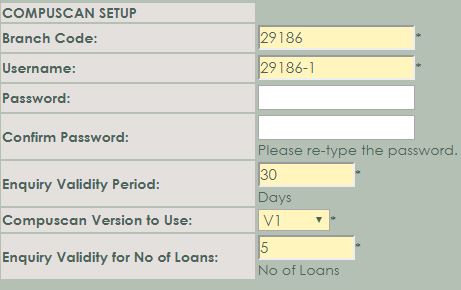
Version 2
Credit Data: Select Yes, if applicable
CPA & NLR
Data: Select Yes, if applicable
CompuScore:
Select Yes, if applicable
Address Mandatory: Select Yes, if
applicable
Do
Affordability: Select Yes, if applicable
Run Compuscan Codix:
Select Yes, if applicable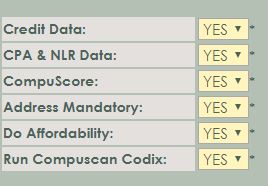
MAXCONSUMER SETUP
Go to Setup > MAXCONSUMER >
MAXCONSUMER Setup
MAXCONSUMER
SETUP
Enabled: Select the checkbox to
enable the MAXCONSUMER setup
Preferred choice for NLR Reg/Updates: In the
dropbox select Compuscan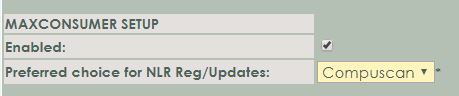
Automatic Compuscan Enquiry
Initial Enquiry Purpose: Setup >
MAXCONSUMER > Compuscan Compuscan V2 Defaults
Automate Compuscan
Enquiry: Setup > MAXCONSUMER > Compuscan > Compuscan Version to User:
must be V2